
Student Guide
Everything a student needs for day to day use of the EHS Training Portal. If you have not signed in yet, start with Getting Started.
This guide is for students only. If you also lead a group, see the Group Leader Guide for the extra screens you get.
Your dashboard
Your dashboard is the training dashboard and is the first screen you see after signing in.
What you see on the dashboard screen
- Across the top: summary tiles for Courses Completed, In Progress, Certificates Earned and Training Hours.
- Main area: Recent Activity shows what you have done lately.
- Lower area: Compliance Status shows your current standing and Upcoming Deadlines shows what is due, soonest first.
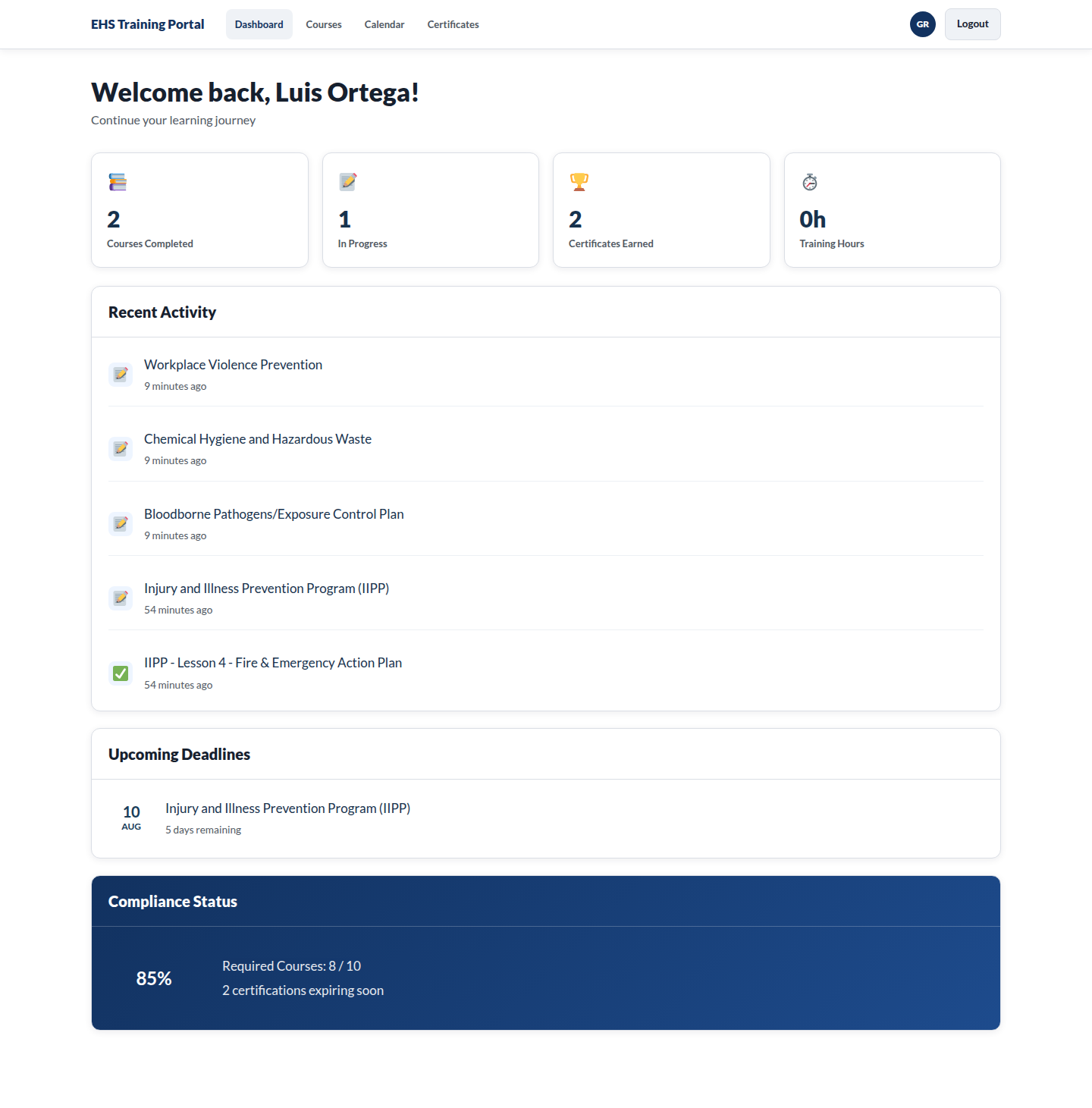
Start with Upcoming Deadlines. It is the fastest way to see what actually needs doing, rather than scrolling the whole course list.
Courses
Finding a course
Go to Available Courses. Each course shows its title and your current standing with it, such as In Progress if you have already begun.
Select a course to open it. Course pages live under Available Courses with the course name on the end of the address.
Tip: You do not have to hunt for the courses assigned to you. Anything outstanding already appears under Continue Learning and Upcoming Deadlines on your dashboard.
Working through a course
A course is made of lessons, and most courses finish with a quiz.
- Open the course and begin the first lesson.
- Work through the lessons in order.
- Your position is saved as you go, so you can stop and come back later.
- Complete the quiz at the end if the course has one.
Your progress updates as you go, and the course shows Completed once every required lesson and assessment is finished.
Warning: Closing the browser in the middle of a quiz does not always preserve your answers. Finish a quiz in one sitting where you can.
When a course is complete
The course shows Completed. If the course provides a certificate, it appears under My Certificates.
Certificates
My Certificates lists the training you have finished, each with a Download button.
What you see on the My Certificates screen
- Across the top: the heading My Certificates.
- Main area: one row per completed course, each with a Download action.
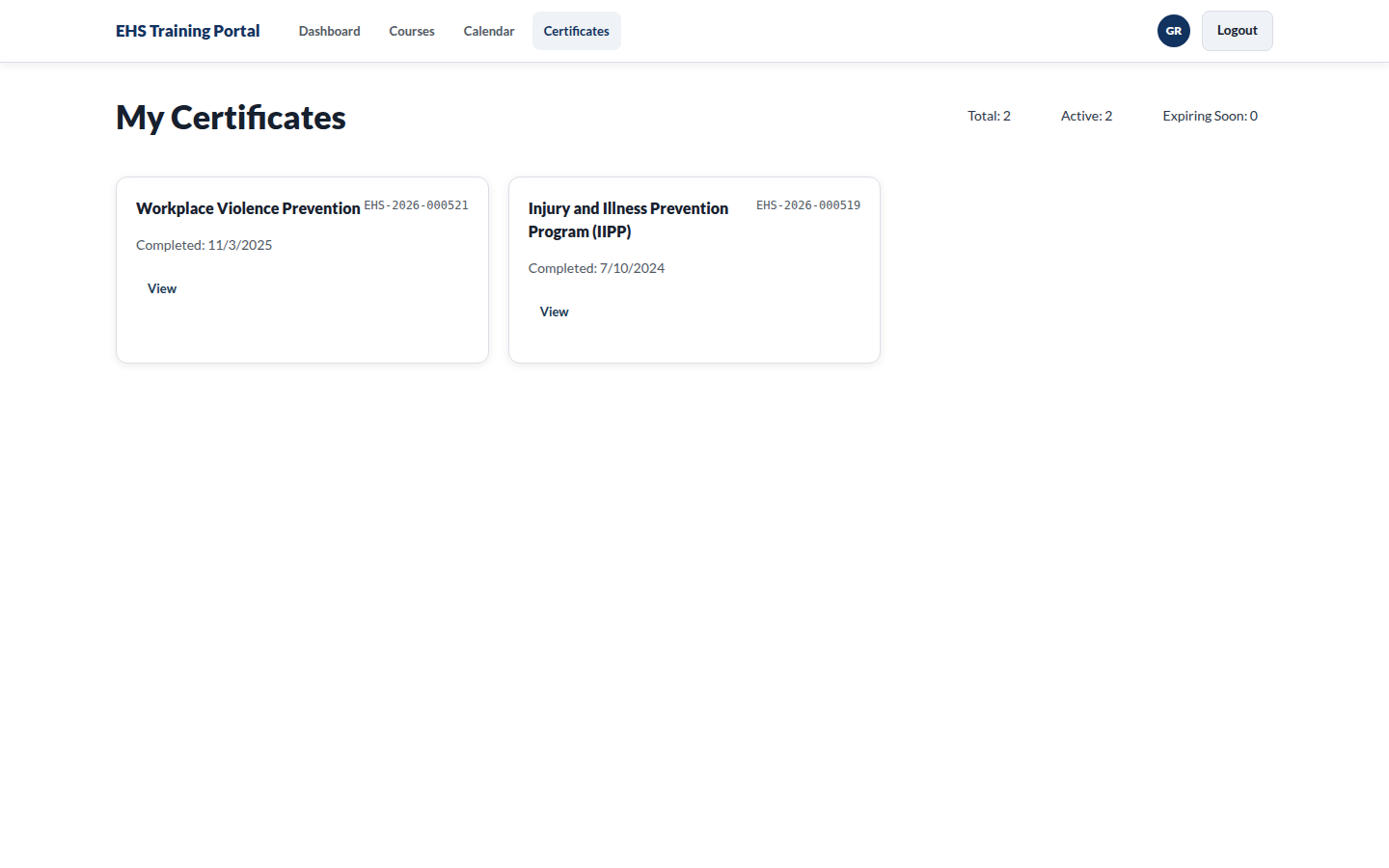
Download a copy and keep it. It is your proof of training if anyone asks.
Training that expires
Most safety training does not last forever. Courses can carry an expiry date, and when that date passes the training no longer counts toward your compliance.
The portal shows this in a few places:
- Your Compliance Status tile changes when something has lapsed.
- Upcoming Deadlines lists training approaching its due date.
- Training that has already lapsed is shown as Expired, and training with a future date shows when it Expires. Training with no date set shows as Not set.
When training is close to expiring, you get a reminder email about a week beforehand. Once it has expired you get overdue notices until you retake it.
Retaking expired training works exactly like taking it the first time. Open the course and work through it again.
Your profile
My Profile is not built yet. The screen loads and says "Profile management coming soon", and nothing else. It is in the navigation, so it is easy to arrive there expecting something.
To check what the portal has recorded against your name, use My Certificates, or ask your group leader or an administrator. If a detail is wrong, such as a misspelled name or a course you know you completed that is not listed, you cannot correct it yourself in any case. Raise it through Support and Feedback.
Training calendar
Training Calendar is not built yet either. The screen says "Calendar functionality coming soon".
Until it exists, Upcoming Deadlines on your dashboard is where to look for what is due and when.
Support and feedback
If something is broken or you have an idea, there is a form for it rather than an email address to guess at.
Reporting a problem asks for:
- Category
- Priority
- Subject, a brief description of your issue
- Describe Your Issue, where you explain what you were trying to do, what happened, and what you expected instead
Suggesting an improvement asks for:
- Feedback Type
- Impact on Your Work
- Summary, a quick summary of your idea
- Tell Us More, where you explain the idea and the problem it would solve
The more precise you are about what you were doing when a problem happened, the faster it gets resolved.
What you cannot do
These are deliberate limits, not faults:
- You cannot enroll yourself in courses that have not been made available to you.
- You cannot change your own completion dates or training history.
- You cannot see other students' records.
- You cannot delete a certificate or a completed course from your history.
Anything in that list needs a group leader or an administrator.