
Getting Started
Welcome to the EHS Training Portal. This page covers signing in for the first time and finding your way around. It takes about five minutes.
Who this is for
The portal has three kinds of people in it, and each sees a different set of screens.
| You are | You use | Start with |
|---|---|---|
| A student taking training | Your own courses, certificates and profile | This page, then the Student Guide |
| A group leader or instructor | Your group's students and their training records | This page, then the Group Leader Guide |
| An administrator | Everything, including settings and notifications | This page, then the Administrator Guide |
You do not choose your role. It is set for you when your account is created, and the portal shows you only what your role allows.
Signing in for the first time
You do not create your own account. An administrator or your group leader creates it for you, and the portal emails you a welcome message.
- Open the welcome email. It contains a link to the portal and a link to set your password.
- Follow the password link and choose a password.
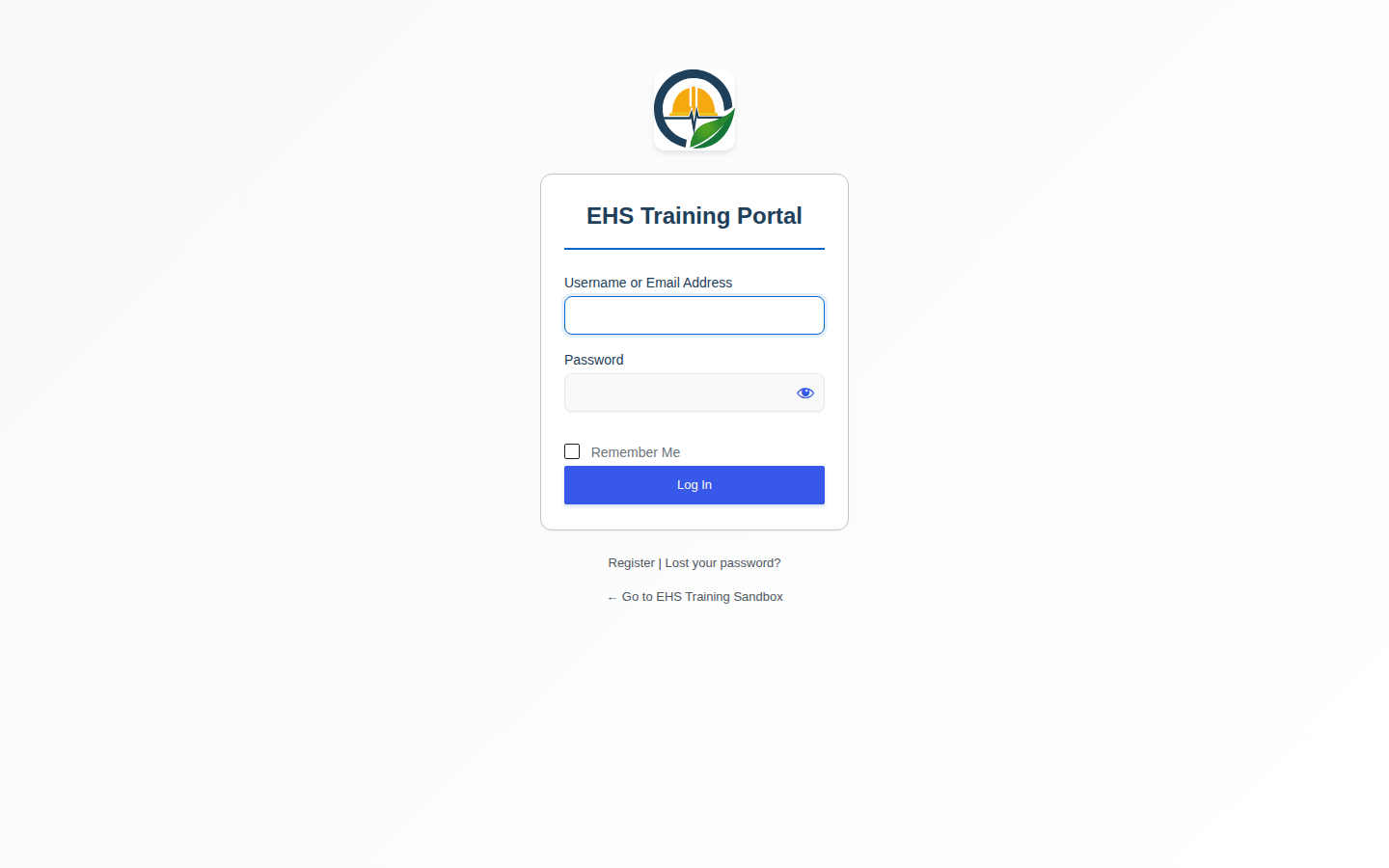
- Go to the sign-in page. The screen is titled EHS Training Portal.
- Enter your username and password, then sign in.
Tip: If the welcome email never arrived, check your junk or spam folder before asking for a new one. If it is genuinely missing, see Troubleshooting.
What you see on the sign-in screen
- Across the top: the portal name, EHS Training Portal.
- Main area: a username box, a password box, and the sign-in button.
- Below the form: a link to reset your password if you have forgotten it.
Your first screen after signing in
Where you land depends on your role.
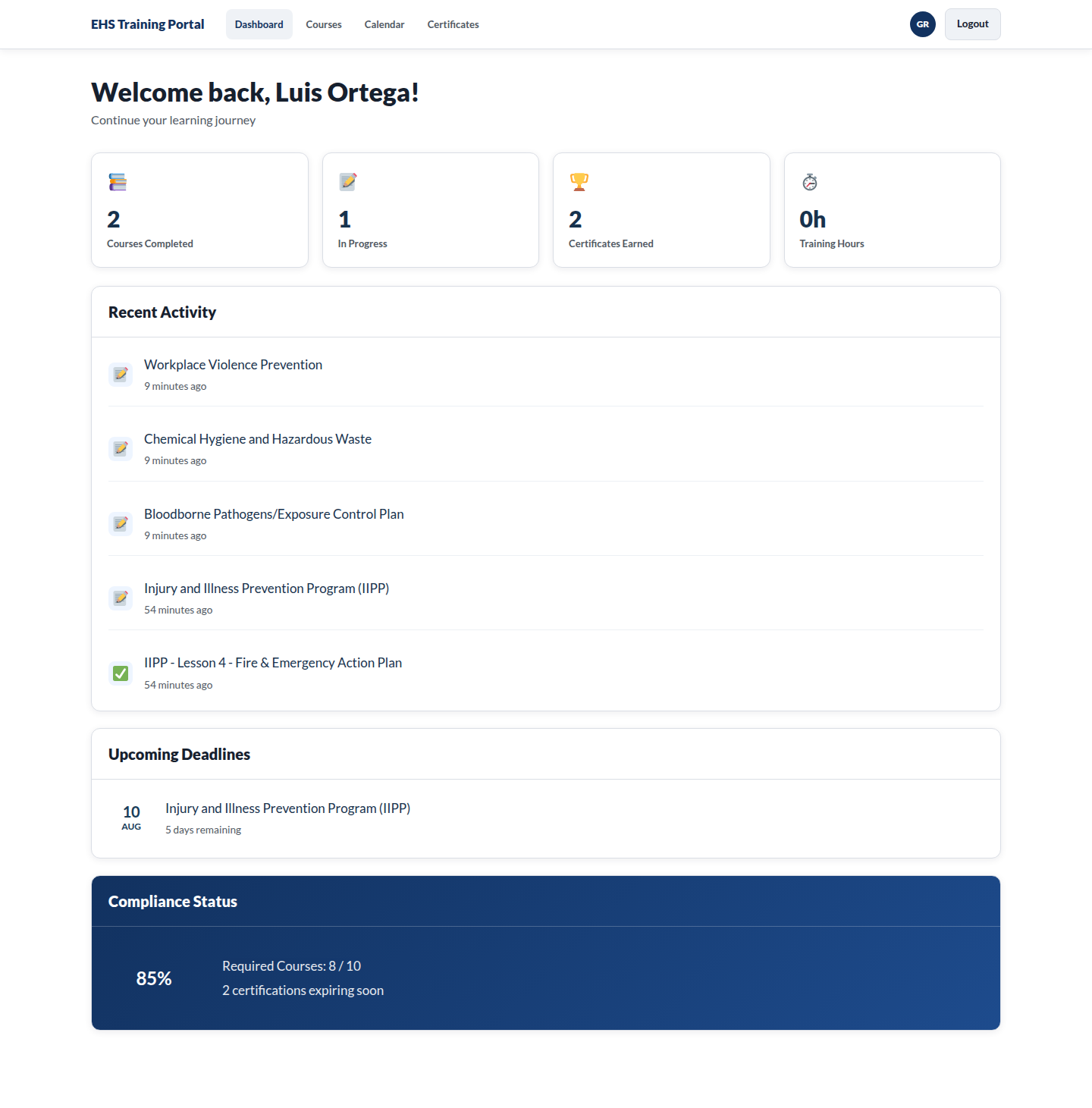
- Students land on the training dashboard.
- Group leaders land on the instructor dashboard.
- Administrators land on the admin dashboard.
Demo sandbox logins use Greenroom personas (for example student Luis Ortega, group leader Dana Whitfield, dense history Noah Bennett). See the client handoff for usernames.
What you see on the student dashboard
- Across the top: summary tiles for compliance, courses, certificates, and hours (labels can vary slightly by theme version).
- Main area: courses assigned to you, progress, and ways to continue learning.
- Elsewhere on the page: recent activity and upcoming deadlines when those widgets are present.
The two things most people do first
- Finish a course that is already assigned to you. Look at Continue Learning on your dashboard, or Upcoming Deadlines if you are not sure what is most urgent. Full steps are in Common Tasks.
- Download a certificate for training you have finished. Go to My Certificates and use the Download button next to the course.
Finding your way around
Students can reach these screens:
| Screen | Where it lives | What it is for |
|---|---|---|
| Dashboard | /training/ | Your progress at a glance |
| Available Courses | /training/courses/ | Everything you can take |
| My Profile | /training/profile/ | Not built yet. The screen says "coming soon" |
| My Certificates | /training/certificates/ | Download proof of completed training |
| Training Calendar | /training/calendar/ | Not built yet. The screen says "coming soon" |
Group leaders and administrators see additional screens. Those are covered in their own guides.
Emails the portal sends you
You do not have to watch the portal to stay on top of your training. It emails you when something needs attention.
| When it arrives | |
|---|---|
| Welcome | When your account is first created |
| Training reminder | At regular intervals while you have training outstanding |
| Due soon | About seven days before training is due |
| Overdue | Once training passes its due date, then repeatedly until it is done |
| Completion certificate | As soon as you finish a course |
| Password reset | When you ask to reset your password |
Warning: Overdue notices repeat on an escalating schedule, so they arrive more than once. The way to stop them is to complete the training, not to ignore them.
Where to go next
- Taking courses day to day: Student Guide
- Step by step walkthroughs: Common Tasks
- Something is not working: Troubleshooting
- Quick answers: Frequently Asked Questions