
Administrator Guide
For administrators. You see every screen in the portal and every student in the organisation, and you control the settings that everyone else lives with.
You can do everything a student and a group leader can do. This guide covers the parts that are yours alone. For the rest, see the Student Guide and the Group Leader Guide.
The admin area
The admin area is at the admin dashboard. It is a separate area from the rest of the portal, with its own sidebar.
| Screen | Where it lives | What it is for |
|---|---|---|
| Dashboard | /training/admin/ | Activity at a glance |
| Student Management | /training/admin/users/ | Every student and their standing |
| Course Management | /training/admin/courses/ | The course catalogue |
| Quiz Management | /training/admin/quizzes/ | Quizzes attached to courses |
| Enrollments | /training/admin/enrollments/ | Who is signed up to what |
| Renewals | Renewals screen | Training coming up for renewal |
| Reports & Analytics | /training/admin/reports/ | Completion and progress reporting (EHS SPA) |
| Organization Reports | /reports/ | Group and team organization reports (separate from training admin reports) |
| Edit Group Data | /training/admin/groups-data/edit/ | Group self-service: staff names, phone, medical facility, evacuation locations |
| Group Data Preview | /training/admin/groups-data/preview/ | How that information appears in shortcodes |
| Safety & Emergency Information | /training/admin/groups-meta/ | Parallel older UI for the same group safety fields |
| Notifications | /training/admin/notifications/ | Everything the portal emails |
| Support & Feedback | /training/admin/support/ | What people have reported |
| FAQ | /training/admin/faq/ | Answers shown to your users |
| Settings | /training/admin/settings/ | Portal-wide configuration |

Student Management
Student Management is the busiest screen in the portal. Unlike a group leader, you see every student, not just one group.
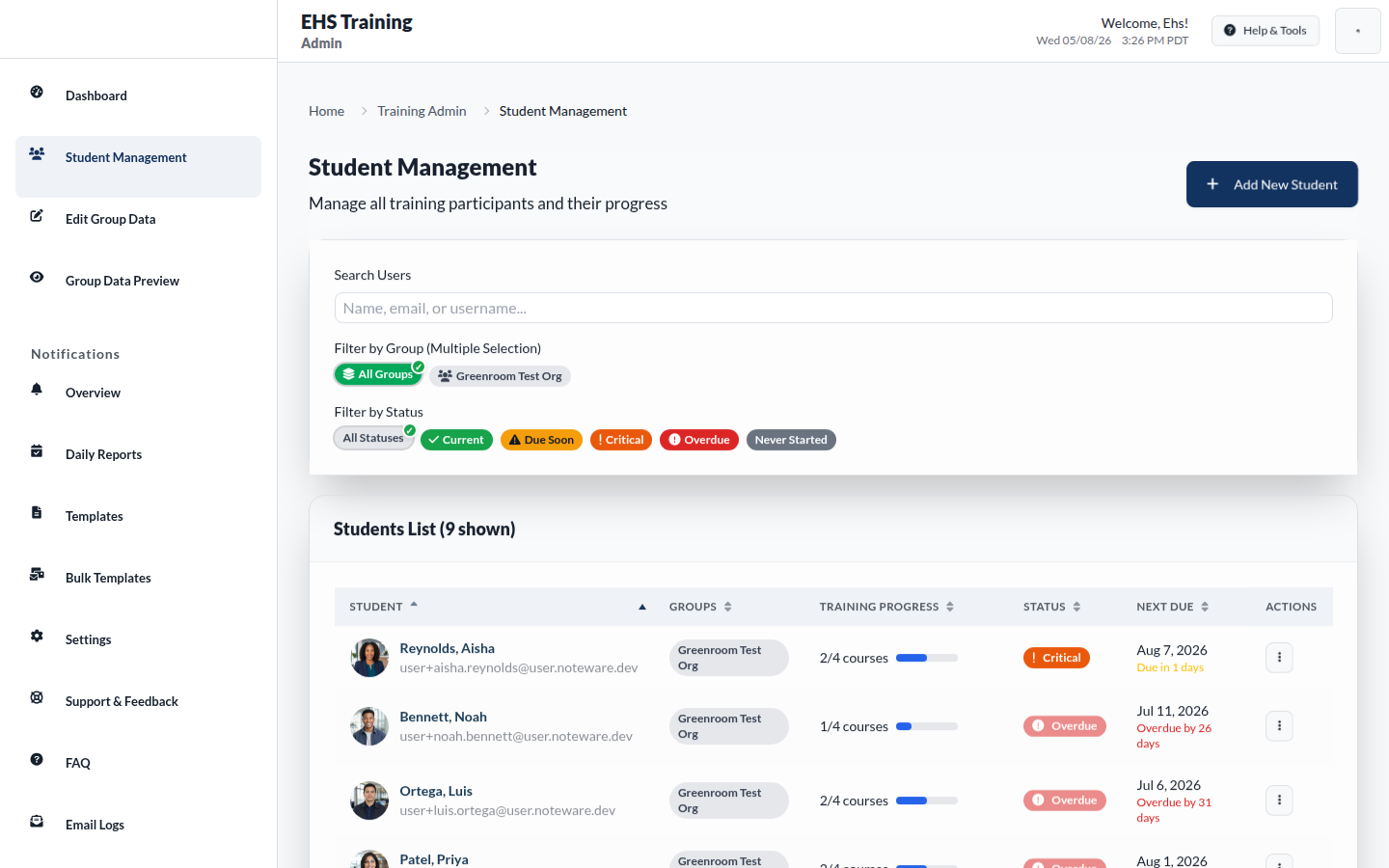
What you see on the Student Management screen
- Across the top: Filter by Status offering All Statuses, Current, Due Soon and Critical, plus group filter chips under Groups & Filters.
- Main area: one row per student with Groups, Last Completion Date, Next Due Date, Days Until Due and Actions.
- Supporting panels: Compliance Reporting and Course Completion Ratio summarise the list you are currently looking at.
Opening a student shows their full record: their courses with Completion, Completion Date, Completion Type and Enrollment, their Lesson Progress, their Renewal Due Date and Next Renewal, plus Notes and Add Historical Completion.
Warning: Add Historical Completion sets the student's next renewal date from the completion date you enter. A wrong date can make a lapsed student appear compliant. This is compliance data, so treat a correction to it as seriously as the original record.
Courses, quizzes and enrollments
- Course Management at /training/admin/courses/ is the catalogue of training available in the portal.
- Quiz Management at /training/admin/quizzes/ covers the assessments attached to those courses.
- Enrollments at /training/admin/enrollments/ shows who is signed up to what, and is where you fix somebody who cannot see a course they should have.
Reports and analytics
Reports & Analytics at /training/admin/reports/ is where you answer questions from auditors and managers.
What you see on the Reports screen
- Across the top: the heading Reports & Analytics.
- Main area: headline figures including Total Completions, Active Learners and Overdue.
- Sections: Course Analytics, described on screen as "Analyze course performance and engagement", with Top Courses by Completion; User Progress, described as "Track individual user training progress"; and a Renewals Report.
If a section shows No completion data available or No course data available, that means nothing matched, not that the report is broken. Widen the filters before assuming a fault.

Renewals
Most safety training expires. The Renewals screen lists training approaching or past its renewal date across the whole organisation.
This screen is administrator only. Group leaders are told directly that the global renewals list is restricted to them, so they rely on their own student list and on you.
Notifications
Notifications at /training/admin/notifications/ controls everything the portal emails. The area is titled Training Notifications and has several screens beneath it.
| Screen | Where it lives | What it is for |
|---|---|---|
| Overview | /training/admin/notifications/ | What is going out |
| Daily Reports | /training/admin/notifications/daily-reports/ | The daily activity summary |
| Email Logs | /training/admin/notifications/email-logs/ | What was actually sent |
| Templates | /training/admin/notifications/templates/ | The wording of each email |
| Bulk Templates | /training/admin/notifications/bulk-templates/ | Send a template to a list of people |
The emails the portal sends
| When it goes out | Who gets it | |
|---|---|---|
| Welcome | When an account is created | The new student |
| Training reminder | At intervals while training is outstanding | The student |
| Due soon | About seven days before the due date | The student |
| Overdue | Once past due, then on an escalating schedule | The student |
| Completion certificate | On finishing a course | The student |
| Daily report | Daily, if there is activity to report | Administrators and group leaders |
| Password reset | On request | The person requesting |
Each email can be switched on or off individually, and there is a master switch that turns off all automated email at once. Password resets are deliberately excluded from the master switch, so people can always recover their accounts.
Warning: Turning the master switch off stops due soon and overdue notices. Students will not be told their training has lapsed, and compliance will drift quietly. Use it for a short maintenance window, not as a way to reduce email.
Email Logs
Email Logs records what was actually sent. When somebody says they never received a notice, check the log before resending. It tells you whether the portal sent it, which is a different problem from the mail never arriving.
Bulk Templates
Bulk Templates sends any of the templates to a list of recipients you paste in, one address per line. You can customise the wording for that send, send a test to yourself first, and watch progress as it runs. At the end you get a summary including any addresses that failed.
Tip: Always use the test send before a bulk run. A wrong template sent to the whole organisation cannot be recalled.
Support and feedback
Support & Feedback at /training/admin/support/ collects what your users report. Problem reports arrive with a Category, a Priority, a Subject and a description. Suggestions arrive with a Feedback Type, the Impact on Your Work, a Summary and the detail.
FAQ at /training/admin/faq/ is where you maintain the answers your users see, so the same question does not arrive repeatedly.
Settings
Settings at /training/admin/settings/ holds portal-wide configuration.
What you see on the Settings screen
- System Settings: general portal configuration.
- Email Notifications: Enable Email Notifications and the From Email Address that your messages are sent from.
- Maintenance: Cache Management and Database Maintenance.
- Data Export: getting your records out of the portal.
- System Health: System Information, Plugin Status and the WordPress Environment the portal is running on.
Warning: Database Maintenance acts on the stored training records. Take an export first. Training history is the thing you cannot reconstruct.
Changing the From Email Address affects every message the portal sends. If it is set to an address your mail provider does not recognise as yours, messages start landing in junk folders. Change it deliberately, then send a test.
Complete exports
Select Export Data in Reports or Settings to download the complete employee CSV. It contains employee ID, group, account status, course, completion type, enrollment, completion, due and renewal dates, and both active and archived history. The headline report figures are not the export itself.
Offboarding and reactivation
From a student's detail screen, select Mark Inactive when an employee leaves. The account and training history remain available for audit, but portal sign-in is blocked. Remove the user from the training group when appropriate. Select Reactivate Account if the person returns. Never delete a user to handle a departure because deletion breaks the historical record.
Routine rhythm
A workable pattern for keeping on top of the portal:
- Daily: read the daily report email.
- Weekly: open Student Management, filter to Critical, then Due Soon, and chase anyone who is not moving.
- Monthly: open Reports & Analytics and check the Renewals Report for what is coming.
- Before an audit: export from Settings, and confirm the export matches what Reports shows.
Where to go next
- Step by step walkthroughs: Common Tasks
- Something is not working: Troubleshooting
- Quick answers: Frequently Asked Questions